You will learn to How to insert, edit, and delete Text in Autocad 2004 and 2007 easily , step by step with image
A. Insert Text
1. Creat Style
First open Autocad program and type: STYLE
Now hit Enter and you see
Click New and you see
Now Chose your Text Syle:
Example: Chose Style Name: My Style; Font Name: Verdana; Height: 0.300
Click Apply and then Close. Finish making Style for Text.
2. Now Insert Text
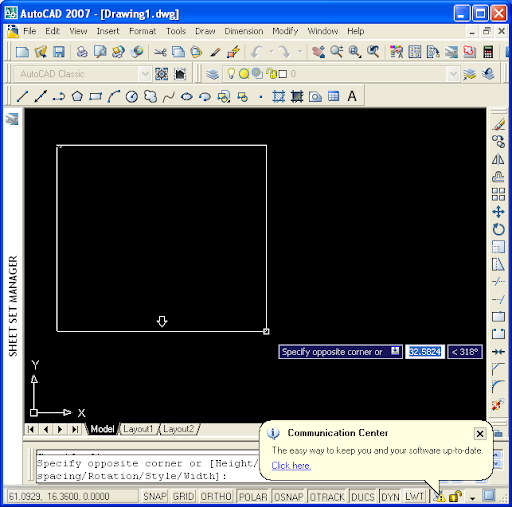
Type: MTEXT and hit Enter
After typing MTEXT and hitting Enter you will see like this image below:
Now drag and drop the left mouse to the right and bottom of screen
Now you type your text you want such as: '" Hi i now can write Text in Autocad"
Press CTRL+ENTER and you see
Oh! my Text is so small. Don't bother just place your mouse at the top and left of your Text and scroll up your middle mouse and you get
Finish Inserting Text
B. Edit Text
Double click on the Text you want to edit and you will see like this image
Now you can edit your text
C. Delete Text
Simply Click one times on the Text you want to delete and right click and then select Erase (or press Delete on the Keyboard)
Finish. Have fun
Showing posts with label How to do. Show all posts
Monday, April 18, 2011
Sunday, April 17, 2011
Fix inverted Pdf error when print Pdf from Autocad program
When you print Pdf file from Autocad program you can get inverted file that you don't want, like this
Now we fix this
Open PDFill PDF Tools (Free) ( you can dowload from here )
Chose 4. Rotate or Crop PDF Page like image above and you see below image
Select file and click Open and you see below image
Chose Rotation 270 degree and click Save As to save file where you want And you get correct file like this
Good luck!
Now we fix this
Open PDFill PDF Tools (Free) ( you can dowload from here )
Chose 4. Rotate or Crop PDF Page like image above and you see below image
Select file and click Open and you see below image
Chose Rotation 270 degree and click Save As to save file where you want And you get correct file like this
Good luck!
Subscribe to:
Posts (Atom)


